Tuesday, January 3, 2012

Google Search Tips & Tricks

I have found one of the most useful skills an IT guy can have is the ability to find what we are looking for on the web very quickly. The key to that is being able to craft well-written Google queries. This seems like a skill that most people could benefit from, so I thought I would pass on some tips & tricks and quickly bring you up to black-belt status in navigating The Internets.

The Basics

  • Every word matters. Generally, all the words you put in the query will be used.
  • Search is never sensitive. A search for new york times is the same as a search for New York Times."
  • Generally, punctuation is ignored, including @#$%^&*()=+[]\ and other special characters.

Keyword Tips

  • Less is more - Simple, one or two word search terms will usually give you the broadest results. The goal of each word in a query is to focus it further. Since all words are used, each additional word limits the results. If you limit too much, you will miss a lot of useful information. The main advantage to starting with fewer keywords is that, if you don't get what you need, the results will likely give you a good indication of what additional words are needed to refine your results on the next search. For example, weather cancun is a simple way to find the weather and it is likely to give better results than the longer weather report for cancun mexico.
  • Use descriptive words - The more unique the word, the more likely you are to get relevant results. Words that are not very descriptive, like 'document,' 'website,' 'company,' or 'info,' are usually not needed. So celebrity ringtones is probably better than celebrity sounds.
  • Visualize what you’re looking for - Think how the page you are looking for will be written. A search engine is not a human, it is a program that matches the words you give to pages on the web. Use the words that are most likely to appear on the page. Keep in mind though, that even if the word has the correct meaning, if it's not the one most people use, it may not match the pages you need.

Search Operators

There are a handful of special characters or phrases you can add to your keywords that can provide some additional context or detail that will help Google find what you are looking for.

  • Terms you want to exclude (-) - Attaching a minus sign immediately before a word indicates that you do not want pages that contain this word to appear in your results. The minus sign should appear immediately before the word and should be preceded with a space. For example, in the query anti-virus software, the minus sign is used as a hyphen and will not be interpreted as an exclusion symbol; whereas the query anti-virus -software will search for the words 'anti-virus' but exclude references to software. You can exclude as many words as you want by using the - sign in front of all of them, for example jaguar -cars -football -os.
  • Fill in the blanks (*) - The *, or wildcard, is a little-known feature that can be very powerful. If you include * within a query, it tells Google to try to treat the star as a placeholder for any unknown term(s) and then find the best matches. For example, the search Google * will give you results about many of Google's products (go to next page and next page -- we have many products). The query Obama voted * on the * bill will give you stories about different votes on different bills. Note that the * operator works only on whole words, not parts of words.
  • Either Or (Or) - Google's default behavior is to consider all the words in a search. If you want to specifically allow either one of several words, you can use the OR operator (note that you have to type 'OR' in ALL CAPS). For example, San Francisco Giants 2004 OR 2005 will give you results about either one of these years, whereas San Francisco Giants 2004 2005 (without the OR) will show pages that include both years on the same page. The symbol | can be substituted for OR. (The AND operator, by the way, is the default, so it is not needed.)
  • Phrase search ("") - By putting double quotes around a set of words, you are telling Google to consider the exact words in that exact order without any change. Google already uses the order and the fact that the words are together as a very strong signal and will stray from it only for a good reason, so quotes are usually unnecessary. By insisting on phrase search you might be missing good results accidentally. For example, a search for "Alexander Bell" (with quotes) will miss the pages that refer to Alexander G. Bell.
  • Search single word exactly as is ("") - Google employs synonyms automatically, so that it finds pages that mention, for example, childcare for the query child care (with a space), or California history for the query ca history. But sometimes Google helps out a little too much and gives you a synonym when you don't really want it. By putting double quotes around a single word, you are telling Google to match that word precisely as you typed it.
  • Search for Keywords with Similar Meaning (~) - Instead of searching for only the given word, using ~ before the keyword you can instruct Google to search for web pages with the exact given word or synonyms of that word. For example, the query TSQL beginner ~tutorial will search for results containing 'TSQL beginner' along with the word 'tutorial' or other words with similar meanings (e.g. guide, manual, reference).
  • Search within a specific website (site:) - Google allows you to specify that your search results must come from a given website. For example, the query ministry site:betenbough.com will return all pages about ministry but only from betenbough.com.
  • Search by file type (filetype:) - Google allows you to search not just for web pages, but also for results contained in specific types of files, such as such as PDFs, PPTs, DOCs, or XLS. For example, filetype:pdf 2012 W4 will return only PDF files as results.

Other Fun Stuff

  • Get the time - To see what time it is anywhere in the world, search time and the city or country. Example: time Nairobi
  • Sports scores and schedules - Get scores and schedules for your favorite NBA, NFL, NHL and MLB teams simply by typing the team or league into the search box. Example: New York Yankees or Texas Tech Basketball or NFL
  • Convert any measurement – Convert units or any measurement (e.g. miles to kilometers, ounces to liters) by typing in the number and unit of measurement. Example: 23.5 kg to pounds or feet in mile
  • Find related pages (related:) - Sometimes it is easier to show Google a page that illustrates what you are looking for than defining what you are looking for in keywords. Use the related: operator to find pages that have similar content by typing related: followed by the website address. For instance, if you find a website you like, try using related:[insert URL] to locate similar websites. Example: related:simplyrecipes.com/recipes/perfect_guacamole/

Other Resources

If this hurts your head, and you need an easier alternative to remember all this stuff ... Google Advanced Search might be a simpler approach that provides most of the advanced functionality described here.

Think you might not be able to remember all this stuff ... or want to go even deeper down the rabbit hole? There is a great Google Advanced Operators Cheat Sheet that can help you quickly remember the operator you need to use, or teach you about others that I didn't mention here.

Shortcut to Google Search

Instead of navigating to Google.com, then typing in your search ... you can just type in your keywords into the browser and hit enter.

If your browser doesn't send you to Google when you do this, but instead sends you to somewhere like Bing, you can change that behavior by setting Google as your default search provider.

Tuesday, December 27, 2011

Use Windows+Tab To Quickly Switch Between Windows

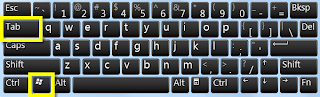
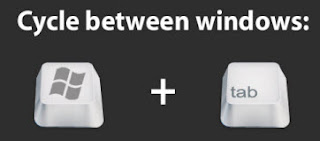
There are a lot of keyboard shortcuts in Windows, but perhaps one of the most useful is using Windows+Tab to switch between different windows you have open. To try it out just hold down the Windows key, then press Tab a few times.

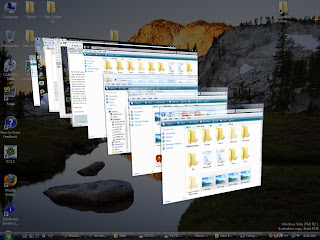
You should see something that looks like the image below. Each time you press Tab (while still holding down the Windows key) it will cycle through to the next window. When you find the one you are looking for, just release all of the keys and it will display the window you selected.

Most people typically have a few programs open at once, and when you sum up the total amount of time we spend navigating between those windows it can add up quick. That is why we have an IT policy to give people a dual monitor setup if they think they would use both of them, and also why I wanted to share this quick tip with you. Try to remember to use it over the next week, and I bet you will be hooked.

Tuesday, December 13, 2011

Getting Started with IE 9

We recently upgraded everyone's browser to Internet Explorer v9, and I thought I would quickly run through some of the things that changed in the new version, as well as some of the new features. Some of the most significant improvements are that many of the core pieces that run the web browser have been re-written and are now blazing fast. This means just about everything you do on the web should be at least slightly faster, which should make it worth working through the learning curve and getting use to the new layout and features.

You can watch this short 2 minute video to see what has changed:

Who moved my cheese? Using the new browser controls

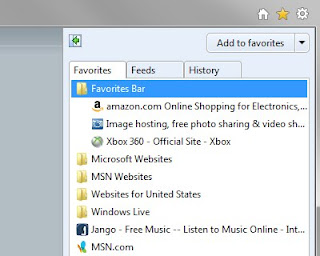
The first thing you'll notice when you open Internet Explorer 9 is the simplified design. You can find most command bar functions, like Print or Zoom, when you click the Tools button , and your favorites and feeds appear in Favorites Center when you click the Favorites button .

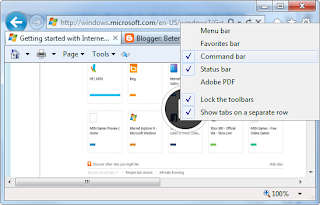
Tabs automatically appear to the right of the Address bar, but you can move them so they appear below the Address bar, as they did in previous versions of Internet Explorer. You can always show the Favorites, Command, Status, and Menu bars by right-clicking the Tools button , and then selecting them on a menu.

From what we have seen, most people prefer to display the Command Bar and sometimes the Favorites Bar as well.

For more information about basic controls, see:

Pin sites to the taskbar

You can access websites that you visit regularly by pinning them to the taskbar on your Windows 7 desktop.

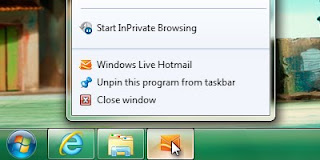
Pinning a site is simple: just drag its tab to the taskbar—the website's icon will stay there until you remove it. When you click the icon later, the website will open in Internet Explorer.

Whenever you open a pinned site, the website icon appears at the top of the browser, so you have easy access to original webpage that you pinned. The Back and Forward buttons change color to match the color of the icon.

For more information about adding and removing pinned sites, see Pin a website to your taskbar.

Search in the Address Bar

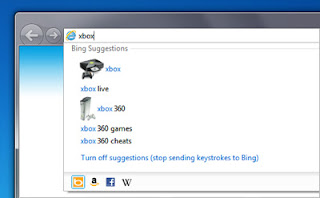
You can now search directly from the Address bar. If you enter a website's address, you'll go directly to the website. If you enter a search term or incomplete address, you'll launch a search using the currently selected search engine. Click the address bar to select your search engine from the listed icons or to add new ones.

When you search from the Address bar, you'll have the option of opening a search results page or the top search result (if your chosen search provider supports the feature). You can also turn on optional search suggestions in the Address bar.

For more information about searching in the Address bar, see Search in the Internet Explorer 9 Address bar.

Notifications that don't slow you down ... but aren't obvious either

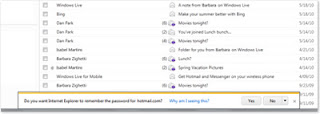
The new Notification bar that appears at the bottom of Internet Explorer gives you important status information when you need it, but it won't force you to click a series of messages to continue browsing.

For more information about the Notification bar, see the Internet Explorer Notification bar: frequently asked questions.

Tuesday, December 6, 2011

iPhone Keyboard Tricks

Here are a few tips to help you type faster on the iPhone:

  • Tap the space bar twice, and iPhone adds a period and capitalizes the next word.
  • To enter a number or symbol quickly, touch and hold, then select the key you want. Lifting your finger returns you to the alphabet keyboard.
  • Touch and hold a letter to reveal a list of special characters.

Here is a quick video that shows these tricks in action, and also includes a few others:

Monday, November 28, 2011

How to Focus Camera on iPhone

While shooting photos or video, tap the screen where you want to focus. When you do this the iPhone will also adjust the exposure and white balance automatically. So with a single tap you can dramatically improve the quality and detail of your picture.

Monday, November 14, 2011

How To Turn Off Wireless Network Alerts on iPhone

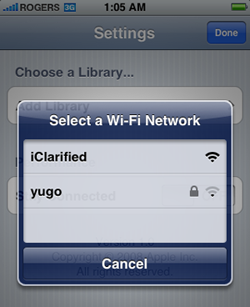
For most people, it doesn't take long after they get a new iPhone to become annoyed by the persistent alerts asking them to join a wireless network that they happened to be near. Here is an example of what that type of alert looks like:

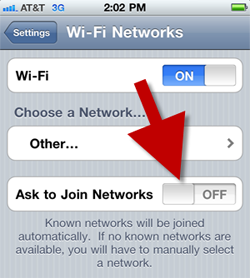
You might be prompted 10 times or more just driving down a city street. Here is how to turn that “feature” off:

  1. From the Home screen, tap the Settings icon
    iPhone Settings Icon
  2. Tap on Wi-Fi
    iPhone Settings Wi-Fi
  3. If Wi-Fi is set to OFF, switch it to ON
  4. Set the Ask to Join Networks switch to OFF

Tuesday, November 8, 2011

Tips for Good Email Subjects

Your email's subject line is, next to your name, the first thing the recipient sees. It is important. A good subject should make it easy for your recipient to immediately understand why you've sent them an email and to quickly determine what kind of response or action it requires. Compose a great “Subject:” line that hits the high points or summarizes the thrust of the message. Avoid “Hi,” “One more thing...,” or “FYI,” in favor of typing a short summary of the most important points in the message. A well crafted subject is especially helpful when you have to go back and search for an old email, because they allow you to get a general idea of the content within an email without having to inspect the detials of each one.

So now that we agree email subjects are important, here are some tips on how to create effective subjects.

What Not To Do

  • Never leave the subject blank
  • Don’t be vague or general
    (Ex: “Hi”, “Phone Call”, “Friday”, “Home Page”, “Tom”, “Did you get it?”)
  • Don’t try to stuff everything into the subject
    (Ex: “Important Information Regarding A Keynote Presentation You Should Attend Dec 1st”)
  • Don’t try to arouse interest or curiosity to tease someone into opening the email to see what it is really about
    (Ex: “Exciting News” or “Special Guest”)

What To Do

A good subject should give the message’s bottom line, similar to the headline for a newspaper article. Here are some tips to help you compose a good subject:

  • Summarize the message. This might be why you are writing and what you want to be different after the recipient has read your email — instead of describing it.
  • Be Precise. Include detail that allows the recipient to identify what you are talking about quickly and unambiguously. For example, if you are sending an email to the marketing team, a subject of “Event” or “Ad” is probably not specific enough to be of any benefit to them. Try to put yourself in the recipient’s shoes, and craft a subject that will allow the reader to have a general idea of what the email contains before they open it.
  • If your message requires the recipient's action, say so; preferably with the first word. The subject of these types of emails should be actionable.
  • Omit unnecessary words. Email subjects need to be concise. Skip articles, adjectives and adverbs.