Showing posts with label General. Show all posts

Tuesday, July 3, 2012

Evernote

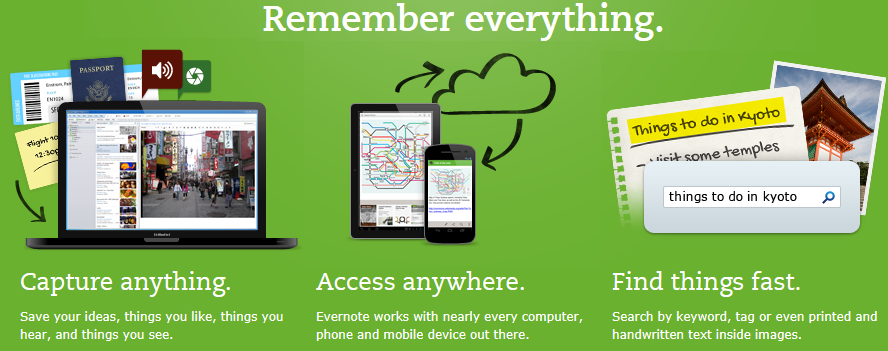
Evernote is an app focused on storing your notes and related images, then giving you access to that information from virtually any web-connected devices (desktop, mobile device, browser, etc.). It is a great replacement for the iPhone’s native Notes app, because it contains a lot of additional features and also allows you to review and edit those notes from a desktop if it is more convenient and it always keeps everything in-sync behind the scenes.

For the best experience, install it on both your iPhone and your desktop to make it easy to view and edit your notes wherever you are.

Learn More

Monday, May 21, 2012

Business Communication Tips

Call, Email, or Text?

As technology changes, so does how we communicate. We are constantly trying to decide how we should communicate something with a particular person … email, text, phone call, in-person? I wanted to share some tips that most people agree to be good business etiquette regarding communication.
Medium Reasonable Response Expectation Appropriate Uses
Phone Immediate (synchronous communication) Important, urgent or complex topics
Email Within 1 business day Non-urgent items, when the responder may need time to gather info to respond, or if you want a record of the communication
Text Varies greatly, typically 2 minutes to 2 hours … maybe never (see section below) Informal topics that aren't urgent or important

Set Rules for Email-to-Phone Escalation

One Senior VP in a Fortune 500 company recently said that he's established a simple policy with his direct reports that has cut email volume by almost 40%: once a decision generates more than four emails total in a thread, someone needs to pick up the phone to resolve the issue.

Text/SMS Message Unreliability

Has anyone ever asked “Did you get that text I sent?” and you didn’t have a clue what they were talking about. Let me explain what might be going on there. Unlike email, SMS message delivery is not guaranteed. Instead SMS messages are delivered by service providers on a “best effort basis.” So when the network is congested most carriers automatically switch to a “store and forward mode”, which places all incoming text messages in a queue and defers their delivery until the network congestion and higher-priority voice traffic subsides. Usually that just means the messages are delayed, but in some cases those queues are never emptied or the messages may not be delivered until long after their relevance has passed. Various studies have shown that 1-5% of messages are lost entirely, even during normal operation conditions.

Tuesday, February 14, 2012

Setting Free/Busy Status On Calendar Events

A few weeks ago I showed how to use Outlook's Scheduling Assistant feature. That feature is especially powerful when you need to schedule a meeting with multiple people, because it allows you to quickly find a time when everyone has a free spot on their calendar. But that system only really works if:

  1. Everyone keeps their schedule on their calendar (i.e. blocking out time when they aren't available)
  2. Everyone sets their free/busy status appropriately for events on their calendar (i.e. not blocking out time they really are available)

#1 is simple, but I wanted to quickly show explain #2 and show how to set the free/busy status for events on your calendar. You may sometimes have events on your calendar that aren't really meetings or even events you will personally attend. They might be personal reminders, or I know some managers keep track of their team's vacation schedule by getting them to send a calendar invite for the times they will be out so the manager has it on their calendar as a reminder. If you have events like this on your calendar, you need to ensure their free/busy status is set to Free. That will still keep it on your calendar, but it won't make it appear like you are blocked off during that time when other people are trying to look at when you would be free using Outlook's Scheduling Assistant.

Here is where you would set the free/busy status when you have a calendar event open in Outlook. They call that event setting Show As:

You can also set the free/busy status for a calendar event from your iPhone. They call that event setting Availability:

When you accept an invite from someone, by default the event will be set to busy when it is added to your calendar. So just remember to change it to Free if it really shouldn't block off your calendar.

Monday, January 30, 2012

How To Use Scheduling Assistant to Reserve Rooms

If you plan to have a meeting or event in one of our shared meeting spaces like the Main Conference Room or Garden Room, you need to reserve it on the calendar. This is especially important now that we are making those more available to outside organizations during business hours. Here are tips on how you can check the availability of one of those rooms, and how to properly reserve the space in a way that others would see it was in use during that time.

This is very important, because unless everyone schedules these shared resources in the way I about to explain we will inevitably have scheduling conflicts. So, if there are multiple people needing the same space … the new rule is, whoever had it properly reserved on the calendar gets the room. This will also ensure if an outside organization reserves the space, it will actually be available for them to use when they get here (I’m guess it might be awkward if it isn’t).

I am going to explain how to do this using Outlook Web Access, although the steps would be very similar in the Outlook desktop client.

  1. Open Outlook Web Access by going to mail.betenbough.com
  2. Click on the Calendar tab in the left navigation menu, then click the New link at the top.
  3. That should open a new window where you can enter the event details (shown below). Click on the Scheduling Assistant tab at the top.
    Important: You can’t just type in the room in the “Location” textbox for the event (shown above). That won’t add it on the shared calendar for that room, which means nobody else will be able to see that you plan to use that space during that time.
  4. In this window you can add both meeting attendees (at least for Betenbough Employees) and specify the Rooms you want to reserve. Just click on the line under Select Rooms, and you can start typing in the name of the room you want to reserve. It will auto-complete possible choices as you type. For this to work, you must type in one of these room names:
    • Main Conference Room - The big room where we have ownership meetings
    • Small Conference Room - The small room behind Peggy’s desk where we do closings
    • Garden Room - Yep … exactly what you think it is.
    • Break Room - This is the redesigned space for kids, but if you want to reserve it for a party or for something like worship team practice … you might pick this room.

    Ensure there is a check by the room you want to reserve. In the center on the window you can see the free/busy schedule for all attendees as well as any rooms you selected. Just click on an open timeslot on the schedule and it will automatically adjust the start & end times of the meeting:
  5. You can now switch back to the Appointment tab at that top and finish entering the rest of the details for the meeting/event (i.e. subject, when the reminder should go off, etc).
  6. Click the Send button in the top left corner, and you’re done. That will send an invite to the attendees and also send the calendar event to the shared calendar for the room.

Tuesday, January 3, 2012

Google Search Tips & Tricks

I have found one of the most useful skills an IT guy can have is the ability to find what we are looking for on the web very quickly. The key to that is being able to craft well-written Google queries. This seems like a skill that most people could benefit from, so I thought I would pass on some tips & tricks and quickly bring you up to black-belt status in navigating The Internets.

The Basics

  • Every word matters. Generally, all the words you put in the query will be used.
  • Search is never sensitive. A search for new york times is the same as a search for New York Times."
  • Generally, punctuation is ignored, including @#$%^&*()=+[]\ and other special characters.

Keyword Tips

  • Less is more - Simple, one or two word search terms will usually give you the broadest results. The goal of each word in a query is to focus it further. Since all words are used, each additional word limits the results. If you limit too much, you will miss a lot of useful information. The main advantage to starting with fewer keywords is that, if you don't get what you need, the results will likely give you a good indication of what additional words are needed to refine your results on the next search. For example, weather cancun is a simple way to find the weather and it is likely to give better results than the longer weather report for cancun mexico.
  • Use descriptive words - The more unique the word, the more likely you are to get relevant results. Words that are not very descriptive, like 'document,' 'website,' 'company,' or 'info,' are usually not needed. So celebrity ringtones is probably better than celebrity sounds.
  • Visualize what you’re looking for - Think how the page you are looking for will be written. A search engine is not a human, it is a program that matches the words you give to pages on the web. Use the words that are most likely to appear on the page. Keep in mind though, that even if the word has the correct meaning, if it's not the one most people use, it may not match the pages you need.

Search Operators

There are a handful of special characters or phrases you can add to your keywords that can provide some additional context or detail that will help Google find what you are looking for.

  • Terms you want to exclude (-) - Attaching a minus sign immediately before a word indicates that you do not want pages that contain this word to appear in your results. The minus sign should appear immediately before the word and should be preceded with a space. For example, in the query anti-virus software, the minus sign is used as a hyphen and will not be interpreted as an exclusion symbol; whereas the query anti-virus -software will search for the words 'anti-virus' but exclude references to software. You can exclude as many words as you want by using the - sign in front of all of them, for example jaguar -cars -football -os.
  • Fill in the blanks (*) - The *, or wildcard, is a little-known feature that can be very powerful. If you include * within a query, it tells Google to try to treat the star as a placeholder for any unknown term(s) and then find the best matches. For example, the search Google * will give you results about many of Google's products (go to next page and next page -- we have many products). The query Obama voted * on the * bill will give you stories about different votes on different bills. Note that the * operator works only on whole words, not parts of words.
  • Either Or (Or) - Google's default behavior is to consider all the words in a search. If you want to specifically allow either one of several words, you can use the OR operator (note that you have to type 'OR' in ALL CAPS). For example, San Francisco Giants 2004 OR 2005 will give you results about either one of these years, whereas San Francisco Giants 2004 2005 (without the OR) will show pages that include both years on the same page. The symbol | can be substituted for OR. (The AND operator, by the way, is the default, so it is not needed.)
  • Phrase search ("") - By putting double quotes around a set of words, you are telling Google to consider the exact words in that exact order without any change. Google already uses the order and the fact that the words are together as a very strong signal and will stray from it only for a good reason, so quotes are usually unnecessary. By insisting on phrase search you might be missing good results accidentally. For example, a search for "Alexander Bell" (with quotes) will miss the pages that refer to Alexander G. Bell.
  • Search single word exactly as is ("") - Google employs synonyms automatically, so that it finds pages that mention, for example, childcare for the query child care (with a space), or California history for the query ca history. But sometimes Google helps out a little too much and gives you a synonym when you don't really want it. By putting double quotes around a single word, you are telling Google to match that word precisely as you typed it.
  • Search for Keywords with Similar Meaning (~) - Instead of searching for only the given word, using ~ before the keyword you can instruct Google to search for web pages with the exact given word or synonyms of that word. For example, the query TSQL beginner ~tutorial will search for results containing 'TSQL beginner' along with the word 'tutorial' or other words with similar meanings (e.g. guide, manual, reference).
  • Search within a specific website (site:) - Google allows you to specify that your search results must come from a given website. For example, the query ministry site:betenbough.com will return all pages about ministry but only from betenbough.com.
  • Search by file type (filetype:) - Google allows you to search not just for web pages, but also for results contained in specific types of files, such as such as PDFs, PPTs, DOCs, or XLS. For example, filetype:pdf 2012 W4 will return only PDF files as results.

Other Fun Stuff

  • Get the time - To see what time it is anywhere in the world, search time and the city or country. Example: time Nairobi
  • Sports scores and schedules - Get scores and schedules for your favorite NBA, NFL, NHL and MLB teams simply by typing the team or league into the search box. Example: New York Yankees or Texas Tech Basketball or NFL
  • Convert any measurement – Convert units or any measurement (e.g. miles to kilometers, ounces to liters) by typing in the number and unit of measurement. Example: 23.5 kg to pounds or feet in mile
  • Find related pages (related:) - Sometimes it is easier to show Google a page that illustrates what you are looking for than defining what you are looking for in keywords. Use the related: operator to find pages that have similar content by typing related: followed by the website address. For instance, if you find a website you like, try using related:[insert URL] to locate similar websites. Example: related:simplyrecipes.com/recipes/perfect_guacamole/

Other Resources

If this hurts your head, and you need an easier alternative to remember all this stuff ... Google Advanced Search might be a simpler approach that provides most of the advanced functionality described here.

Think you might not be able to remember all this stuff ... or want to go even deeper down the rabbit hole? There is a great Google Advanced Operators Cheat Sheet that can help you quickly remember the operator you need to use, or teach you about others that I didn't mention here.

Shortcut to Google Search

Instead of navigating to Google.com, then typing in your search ... you can just type in your keywords into the browser and hit enter.

If your browser doesn't send you to Google when you do this, but instead sends you to somewhere like Bing, you can change that behavior by setting Google as your default search provider.