Monday, May 21, 2012

Business Communication Tips

Call, Email, or Text?

As technology changes, so does how we communicate. We are constantly trying to decide how we should communicate something with a particular person … email, text, phone call, in-person? I wanted to share some tips that most people agree to be good business etiquette regarding communication.
Medium Reasonable Response Expectation Appropriate Uses
Phone Immediate (synchronous communication) Important, urgent or complex topics
Email Within 1 business day Non-urgent items, when the responder may need time to gather info to respond, or if you want a record of the communication
Text Varies greatly, typically 2 minutes to 2 hours … maybe never (see section below) Informal topics that aren't urgent or important

Set Rules for Email-to-Phone Escalation

One Senior VP in a Fortune 500 company recently said that he's established a simple policy with his direct reports that has cut email volume by almost 40%: once a decision generates more than four emails total in a thread, someone needs to pick up the phone to resolve the issue.

Text/SMS Message Unreliability

Has anyone ever asked “Did you get that text I sent?” and you didn’t have a clue what they were talking about. Let me explain what might be going on there. Unlike email, SMS message delivery is not guaranteed. Instead SMS messages are delivered by service providers on a “best effort basis.” So when the network is congested most carriers automatically switch to a “store and forward mode”, which places all incoming text messages in a queue and defers their delivery until the network congestion and higher-priority voice traffic subsides. Usually that just means the messages are delayed, but in some cases those queues are never emptied or the messages may not be delivered until long after their relevance has passed. Various studies have shown that 1-5% of messages are lost entirely, even during normal operation conditions.

Thursday, May 3, 2012

Severe Weather iPhone Apps

We recently had some severe weather and even reports of tornadoes, and I've heard several people say they weren't even aware that was happening (including me). Someone commented that because we now DVR most the TV we watch, the fact that we rarely watch live TV could be dangerous in those scenarios. Wouldn't it be cool if your iPhone could notify you whenever something like that happened?

Weather Alerts

WeatherAlerts App IconView App

Simple, no-nonsense app for quickly notifying you of severe weather alerts in a chosen radius from your current location, including Tornadoes, Hurricanes, Snow Storms, Frost Advisories, Flood/Fire Warnings and hundreds more. Alerts you with sound even when the phone is lying unused with screen off!

One tip on this app … I would configure it not to alert you for a “Wind Advisory”. Those probably come more often than you would like to know about. The cool thing about this app is it is VERY configurable. You can specify exactly what types of events you want it to notify you about.

This app is $4.99, which I know seems like a billion dollars for an iPhone app (how could it possibly be more than 99¢). There are a few other less expensive apps out there like this, but none have near as good of reviews as this one. I won’t get into the technical part of it, but with apps like this there is a large chance that they might drain your battery if they aren’t well written. I haven’t used this for very long, but with all the good reviews I saw I doubt this one has that problem … so I recommend spending the $5 to get it over the other ones.
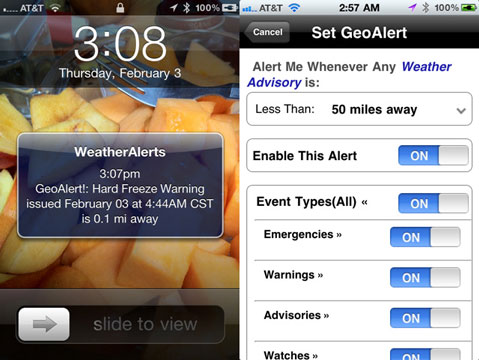
WeatherAlerts Push Notification

NOAA Hi-Def Radar

NOAA Hi-Def Radar App IconView App

Simple yet powerful app for viewing real-time animated weather radar images in vivid color on a highly responsive interactive map, with higher resolution images than any other radar app. It includes the NOAA warning boxes just like what you would see on the news. You can just click on a box and see the details of the warning it represents.

This app is by far the best one I’ve seen for animated weather radar images. It loads MUCH, MUCH faster, more responsive, and has better imagery. Thanks James for sharing this one.
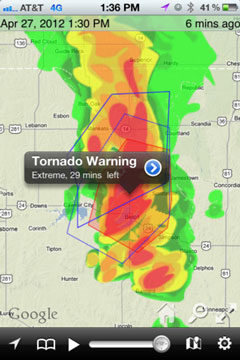
NOAA Weather App Example

Monday, April 23, 2012

How To Use iPhone's Conference Call Feature

Conference calling lets you talk to more than one person at a time. You can merge up to five calls for a phone conference.

  1. Call the first person you want on the conference call.
  2. After they are on the line, tap Add Call and make another call. The first call is put on hold. If you want, you can talk on the second line privately before merging the calls.
    Add Call
  3. Tap Merge Calls. The calls are merged onto one line and everyone can hear each other.
    Merge Calls
  4. Repeat steps two and three to add more calls to the conference.
To Do this
Drop one call from a conference Tap Conference and tap Phone Icon next to a call. Then tap End Call.
Talk privately with a call in a conference Tap Conference and tap Private next to a call. Tap Merge Calls to return the call to the conference.
Add an incoming call to a conference Tap Hold Call + Answer, then tap Merge Calls.

Monday, April 16, 2012

How To Call Forward On iPhone

The iPhone has on-demand call forwarding built-in. This allows you to easily forward all phone calls to another number temporarily, and then turn that back off when you are ready to take calls again.

  1. From the Home screen, tap the Settings icon iPhone Settings Icon
  2. Scroll down and tap Phone
  3. Tap Call Forwarding
  4. Flip the Call Forwarding switch to On, then tap on the Forward To textbox
  5. Use the virtual keypad to enter the number where you want incoming calls to ring
  6. Tap the Call Forwarding button to return to the main Call Forwarding screen

You can tell if call forwarding is enabled by looking for this icon in the status bar.

To turn it call forwarding off just follow the same steps, but in step 4 flip the Call Forwarding switch to Off.

Tuesday, April 10, 2012

TrueHDR iPhone App

Have you taken pictures, only to find out that the beautiful clouds were washed out, making the sky look like a white haze? Or how about outdoor pictures where everything in the shade looked like a dark blob with no details? Have you taken photos of scenes that included lights (indoors or outdoors), only to see that you had to compromise with an overly dark or overly bright final image?

The problem with taking only one photo of a scene that has a large range from bright to dark is that you have to choose whether you want to capture the brighter or the darker areas.

With TrueHDR, you can get the best of bright and dark areas and merge them into a single realistic-looking picture that is much closer to what your eyes originally saw. It essentially takes a couple photos at different exposures and then automatically combines them. The result is a photo with a significantly larger range than the camera is able to capture natively.

Although I haven't switched to using this app exclusively for photos, there are a few scenarios where it can really make a difference:
  • Outdoors when you have bright sunlight & harsh shadows (most of the daytime)
  • Outdoors when you want to see both the sky and a shaded area
  • Indoors when you have to include a light source in the photo

Tips

  • When you open the app, it gives you a few different options for how to take the photo. The Auto Capture mode works great, and I usually just stick to it.
    Capture modes
  • After you take a shot, the app provides some sliders that allows you to easily make adjustments to the merged HDR photos. I typically boost the Contrast and Brightness by 10 or less, but play with the settings to see what looks best for a particular photo. It's easy to go overboard on those settings, so I suggest find what you think looks good and then back off the setting slightly.
    Tweak contrast and brightness sliders

The app costs $2, and some reviews say "TrueHDR is the best two bucks you can invest to improve your iPhone images." It is so good, it was selected by Apple for the App Store Hall of Fame.

Read More or View The App in iTunes

Monday, March 26, 2012

How To Find An Email in Outlook

The Basics

  1. Under Mail Folders, click the folder that you want to search
  2. In the Instant Search box, type your search text (in this example they typed "holiday")
  3. Messages that contain the text that you type appear in the results with search text highlighted
  4. To narrow your search, type more characters or add more criteria (covered in the next section)
  5. To widen your search to include all folders in Mail, at the end of the search results, click Try searching again in All Mail Items

Notes

  • After you have performed a search and located your item in the results list, you can clear the search. Outlook keeps you on the last item you clicked.
  • Attachments are searched but search results from attachments are not highlighted.

Advanced Search

You can narrow your search by adding criteria.

  1. In the Instant Search pane, click Expand the Query Builder
  2. To add more search criteria, type your search text in the From, Body, Subject, or To lines.
  3. To display more search fields in the Query Builder, click Add Criteria, and then select the search fields you want in the list.
  4. Enter your search criteria in the new search fields.
  5. View the search results in the list below the Instant Search pane.

While you enter criteria for the search fields, the Instant Search box displays your criteria as search query syntax. The syntax includes the search criteria followed by a colon, and then the criteria value that you entered, as shown in the illustration below. As you become more familiar with the search query syntax, you can type your query in the Instant Search box instead of using the search fields.

Go Deeper

Monday, March 12, 2012

iPhone Text & Email Tricks

1. Text Expansion

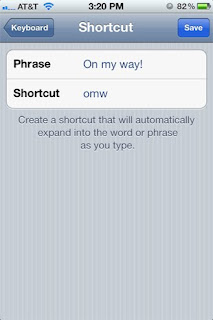
Do you find yourself typing the same thing a million times a day? Go to Settings > General > Keyboard and look for Shortcuts after you scroll down just a bit. Then just enter the phrase and appropriate shortcut, and the next time you type that shortcut the phrase will appear. This is particularly handy for things like BRB or your email address.

2. RTF Emails

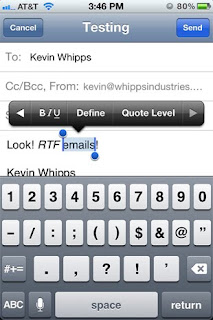
For those that prefer their email fancy, RTF (Rich Text Format) is now available. Just highlight the word or words you want to accentuate per your usual steps, then select the arrow and then the BIU button to pick between bold, italics or underline.

3. Flag An Email or Mark As Unread

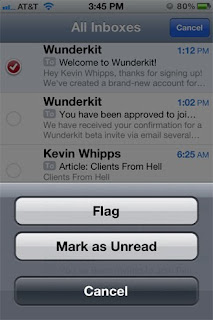
If you’re one of those people who flags every email that comes through, make your OCD happy with iOS 5′s new flag an email feature. To do so, go to your Inbox, hit Edit then select the email(s) you want to flag. Select the Mark tag in the bottom right corner and then select Flag, and you’re good to go.


These helpful tips were found in a very well-written blog article by Kevin Wipps. We will be highlighting some of the relevant tips from that post in our "IT's Tip of the Week" over the next couple weeks. Here is a link to that full post: http://iphone.appstorm.net/roundups/developer/40-secret-iphone-features-and-shortcuts/