Monday, March 2, 2015

Updating your iPhone to the Latest OS

Update your device wirelessly

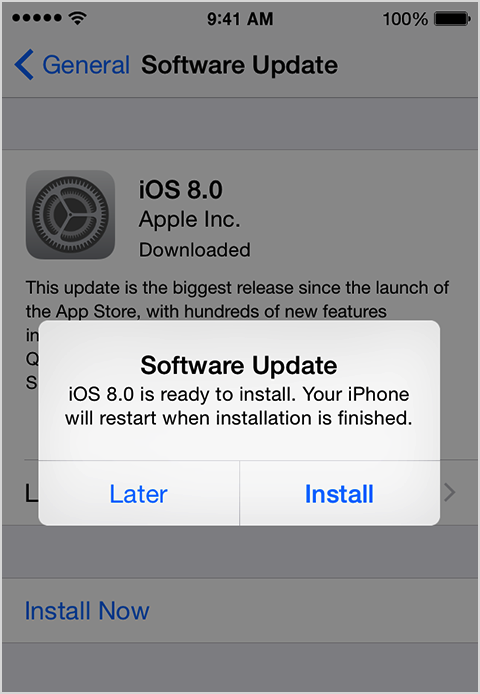
The easiest way to update your device is wirelessly, also called “over the air.” Here’s how:
  1. Plug in your device to a power source.
  2. Tap Settings > General > Software Update.


  3. Tap Download and Install. Updates might download automatically while your device is connected to Wi-Fi and a power source.
  4. Tap Install, or tap Later to install the update later. If you use a passcode, you'll need to enter it before installing the update.

How to Make more Room for iCloud backup and OS Updates on iPhone

Purchase more iCloud Storage for Backup

If you are having storage issues with your iCloud backup, it is very easy to purchase more storage.

  • On your iPhone: Go to Settings > iCloud > Storage, then tap Buy More Storage.

Delete content manually

You can also create more space on your device manually. In the Usage Settings menu, you can see how much space your apps use and delete the ones you don't need. You can always re-download your purchased apps or other content later. Follow these steps:
  1. Go to Settings and tap General > Usage > Manage Storage.
  2. Select any app to see how much space it uses, and tap Delete App to remove it.
  3. Install the iOS update again. Go to Settings > General > Software Update.


Tuesday, July 17, 2012

Add Phrase Shortcuts to iPhone

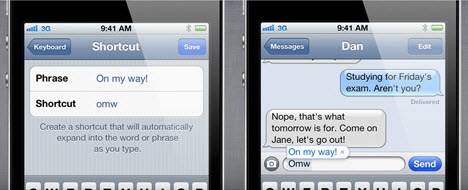
Create your own personal dictionary, including shortcuts for each word. So your keyboard not only autocorrects, but knows exactly what you want to say as you type. In Settings, tap General, Keyboard, and Add New Shortcut. From here, you can add new phrases and assign optional shortcuts to them.
Customize iPhone Keyboard by Adding Phrase Shortcuts

Monday, July 9, 2012

How To Free Up Space for iCloud Backups

With the latest iPhone update, you now have the option to configure your phone to automatically backup all your apps and data to something called iCloud. Apple includes 5 GB of iCloud storage with the device, but if you have lots of photos or video on your phone … you may have received the dreaded email that looks something like this:

Subject: Your iCloud storage is almost full
As a reminder, iCloud comes with 5 GB of free storage. You are currently using 4.9 GB, which means your iCloud storage is almost full. When your storage is full, device backups to iCloud will stop and apps will no longer be able to save documents to iCloud.

You have a few choices here:

  1. Ignore the message, and eventually iCloud will stop backing up your phone (WORST OPTION … but likely what most people do. This essentially means you will lose data if something happens to your phone or you switch to a new one.)
  2. Buy more storage space from Apple ($20/year to double the storage space to 10 GB or $40/year for 20 GB)
  3. Stay on the free plan, but change your iCloud backup settings to only backup certain stuff

I personally have gone with option #3, and that is likely the best route for the majority of people. I’ll show you how to configure what data is backed up to iCloud, and specifically how to turn off the functionality that syncs photos and videos … which will likely put you well under the 5 GB limit.

  1. From the Home screen, tap the Settings icon.
  2. Scroll down, and tap iCloud
  3. Scroll to the bottom, and tap Storage & Backup
  4. Tap Manage Storage
  5. Tap on the backup that says This iPhone under the name. If there are backups listed for other devices you no longer have or you don't know what they are ... you can probably safely delete them to free up some space.
  6. This page allows you to configure whether the data tied to individual apps is backed up to iCloud. Just change the switch to OFF if you don't think it would be tragic if you lost the data related to a specific app.
  7. When you change something to not be backed up, you will be prompted with a scary popup like this one. Just click Turn Off & Delete. Don't worry, it won't delete the data from your phone ... it will just delete it from the iCloud backup to free up space, and from then on it won't send that data to iCloud.

Note: Anything you switch to OFF will no longer be backed up. That means if you lose your phone, or switch to a new one without manually backing all that stuff up ... you will lose that data. So if you turn off Camera Roll like shown above, you stand the risk of losing your photos and videos. I copy the photos and videos to my computer occasionally, and it is a pretty quick and easy process. To learn how to do that, click the link below:

Apple Support: Importing personal photos and videos from iOS devices to your computer

Tuesday, July 3, 2012

Evernote

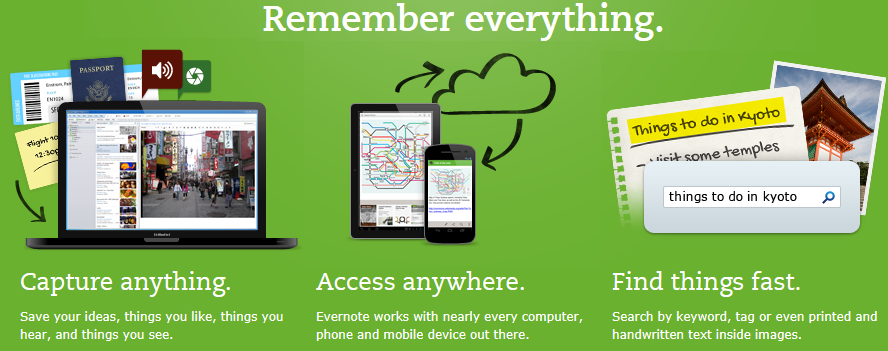
Evernote is an app focused on storing your notes and related images, then giving you access to that information from virtually any web-connected devices (desktop, mobile device, browser, etc.). It is a great replacement for the iPhone’s native Notes app, because it contains a lot of additional features and also allows you to review and edit those notes from a desktop if it is more convenient and it always keeps everything in-sync behind the scenes.

For the best experience, install it on both your iPhone and your desktop to make it easy to view and edit your notes wherever you are.

Learn More

Tuesday, June 12, 2012

iPhone Group Messaging Tips

After you upgraded your iPhone to iOS4, you may have noticed some strange behavior with text messages. Specifically, you may have sent a text to multiple people, had someone reply to you, and then been told by other recipients that they also got the reply. Or, you may have been the recipient of someone's group text, followed by a reply from another one of the recipients you might not even know. This behavior is due to a feature released with the iOS 4 called Group Messaging. This post will explain what group messaging is, and how you can disable/enable it if you desire.

Group Messaging works under the assumption that you'd like texts sent to multiple people to function like a text message chat room, in which all of the recipients can also chat to each other. Since this behavior might be unexpected, it unfortunately could be the cause of a serious social snafu as well. If you have Group Messaging enabled, when you send a text to multiple people it will send your message along with a list of the other recipients getting the text. If one of your recipients also has Group Messaging enabled, they should be able to see who the recipients were, and when they reply to the group text it will go to everyone.

How Do I Know If I Am About to Reply to All

If you were sent a Group Message, at the top of the window it will say Group MMS. It will also say who else is included in the chat room under that. You can just click the Details link to see the full list. If you don’t have one or more of the people in your contacts, it will just show their phone number instead of their name.
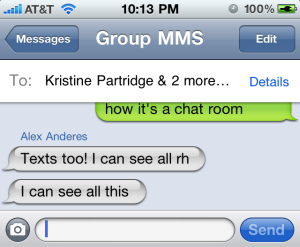
iPhone Group MMS Example

If you want to send a text that all the group will see, just type it out on the Group MMS screen (like the one shown above) and click Send. If you want to reply to just the person who sent the message to you, without the rest of the group being able to read your message you need to go create a new text message and just put that person in the To field. If you reply on the Group MMS window, it will go out to everyone.

How To Disable/Enable Group Messaging

  1. From the Home screen, tap the Settings icon. iPhone Settings
  2. Tap on Messages
    iPhone Messages Setting
  3. Switch the Group Messaging setting to Off to disable, or On to enable.
    iPhone Group Messaging Setting

To clarify, the reply-all only happens if both the sender and the receiver/replier of the text message have Group Messaging enabled. The other recipients do not need to have it enabled to receive the reply all.

One more note … I did find several people online who mentioned there seems to be no way to disable Group Messaging for iMessages. Even if you have Group Messaging disabled, it will still send as a Group Message if all of the recipients are iMessage-able.